---
title: Annotations Access and Overview
description: Learn why annotating is a good option and how to access annotations for your documents
---
[Skip to content](https://docs.boardable.com/knowledge/annotations-access-and-overview#main-content)
![boardable-logo-dark-1.png\]](https://docs.boardable.com/hs-fs/hubfs/Logos/boardable-logo-dark-1.png?height=38&name=boardable-logo-dark-1.png)
Open main navigation
Close main navigation
- [Go to Boardable](https://app.boardable.com/login)
[Go to Boardable](https://app.boardable.com/login)
Advice and answers from the Boardable Team
- There are no suggestions because the search field is empty.
1. [Help Center](https://docs.boardable.com/knowledge?hsLang=en)
2. [Document Center](https://docs.boardable.com/knowledge/document-center?hsLang=en)
3. [Annotate and Edit Documents](https://docs.boardable.com/knowledge/document-center?hsLang=en#annotate-and-edit-documents)
# Annotations Access and Overview
## Learn why annotating is a good option and how to access annotations for your documents
---
### TABLE OF CONTENTS
#### **I. [Annotation Basics](https://docs.boardable.com/knowledge/annotations-access-and-overview#basics)**
#### **II. [Access Annotations](https://docs.boardable.com/knowledge/annotations-access-and-overview#access)**
#### **III. [Select Annotation Visibility](https://docs.boardable.com/knowledge/annotations-access-and-overview#visibility)**
#### **IV. [Add Annotations](https://docs.boardable.com/knowledge/annotations-access-and-overview#add)**
#### **V. [Download Annotations](https://docs.boardable.com/knowledge/annotations-access-and-overview#download)**
---
### **I. Annotations Basics**
The annotation tools support markup of documents. This allows the user to draw attention to important information, emphasize key points, and facilitate idea-sharing between users.
*Annotations* improves collaboration and overall productivity by letting users share notes directly on documents before, during, and after meetings.
Annotations can private or public. Public annotations are visible to all users with access to the annotated document. Private annotations are visible only to the annotating user.
Annotations cannot be applied to documents attached from Google Docs, OneDrive, or Dropbox.
There are two different annotation types:
1. Annotation
1. Free hand
2. Free hand highlight
3. Free text
4. Highlight
5. Rectangle
6. Squiggly
7. Strikeout
8. Underline
2. Additional options
1. Callout
2. Comment
3. Comment status
4. Link
5. Stamp
6. Stamp — custom
7. View annotator
### **II. Access Annotations**
To view and add annotations:
1. Navigate to the desired document
2. Click **Annotate** to toggle on Annotation view
1. Annotation options drop down
2. Comments panel opens on right side of page
3. *Public* and *Private* buttons display to the right of *Annotate* toggle

Only one person at a time can annotate from within Spotlight. To annotate a meeting document at the same time as someone else, open the document from the meeting page.
### III. Select Annotation Visibility
To view and create annotations which are not visible to any other person, click the **Private** button to the right of the *Annotate* toggle.
To view and create annotations which are visible to all others with access to the same document, click the **Public** button to the right of the *Annotate* toggle.

### **IV. Add Annotations**
To use annotation options:
1. Navigate to the document and open it
2. Click **Annotate**

3. Click desired visibility
1. Annotation options display at the top of the document

4. Hover over each icon to view tool name
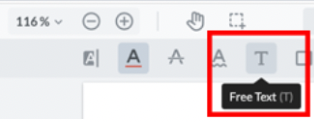
5. Once tool is clicked, color options for that tool become available
1. Note that the tool selected changes colors based on color option selected

6. Click on the document — annotation is applied
### **V. Download With Annotations**
*Note: downloads can only include annotations when format is PDF.*
To download a document with annotations:
1. Navigate to document and open it
2. Click **Download**
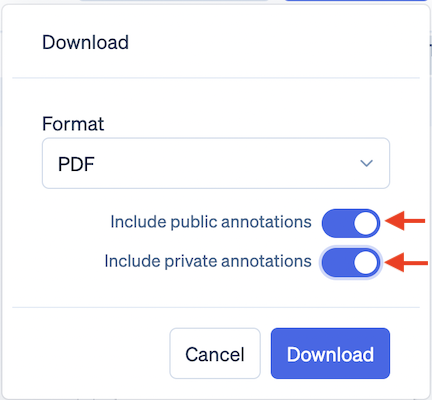
1. Download menu pops out
3. Click the box beneath *Format* which defaults to original file format
1. Options drop down
4. Click **PDF**
1. Annotations toggles display beneath this
5. Click **Include Public** **Annotations** toggle to change selection from **Off** to **On**
1. When toggled on, downloaded document shows public annotations
6. Click **Include Private** **Annotations** toggle to change selection from **Off** to **On**
1. When toggled on, downloaded document shows private annotations
7. Click **Download** with **Annotations**
****
- [Boardable Overview](https://docs.boardable.com/knowledge/boardable-overview?hsLang=en#main-content)
- [Boardable Overview](https://docs.boardable.com/knowledge/boardable-overview?hsLang=en#boardable-overview)
- [Manage Your Subscription](https://docs.boardable.com/knowledge/boardable-overview?hsLang=en#manage-your-subscription)
- [Getting Started](https://docs.boardable.com/knowledge/getting-started?hsLang=en#main-content)
- [Quick Start Guides](https://docs.boardable.com/knowledge/getting-started?hsLang=en#quick-start-guides)
- [Login and Setup](https://docs.boardable.com/knowledge/getting-started?hsLang=en#login-and-setup)
- [Use Boardable Mobile](https://docs.boardable.com/knowledge/getting-started?hsLang=en#use-boardable-mobile)
- [Use Boardable Desktop](https://docs.boardable.com/knowledge/getting-started?hsLang=en#use-boardable-desktop)
- [Boardable Group Trainings](https://docs.boardable.com/knowledge/getting-started?hsLang=en#boardable-group-trainings)
- [Document Center](https://docs.boardable.com/knowledge/document-center?hsLang=en#main-content)
- [Manage Documents](https://docs.boardable.com/knowledge/document-center?hsLang=en#manage-documents)
- [Annotate and Edit Documents](https://docs.boardable.com/knowledge/document-center?hsLang=en#annotate-and-edit-documents)
- [Manage Document Signatures](https://docs.boardable.com/knowledge/document-center?hsLang=en#manage-document-signatures)
- [Meetings](https://docs.boardable.com/knowledge/meetings?hsLang=en#main-content)
- [Create and Configure Meetings](https://docs.boardable.com/knowledge/meetings?hsLang=en#create-and-configure-meetings)
- [Manage Meeting Invitees](https://docs.boardable.com/knowledge/meetings?hsLang=en#manage-meeting-invitees)
- [Create Meeting Agendas](https://docs.boardable.com/knowledge/meetings?hsLang=en#create-meeting-agendas)
- [Take Meeting Minutes](https://docs.boardable.com/knowledge/meetings?hsLang=en#take-meeting-minutes)
- [Use the Calendar](https://docs.boardable.com/knowledge/meetings?hsLang=en#use-the-calendar)
- [Agenda](https://docs.boardable.com/knowledge/meetings?hsLang=en#agenda)
- [Groups](https://docs.boardable.com/knowledge/groups?hsLang=en)
- [Discussions](https://docs.boardable.com/knowledge/discussions?hsLang=en)
- [Polls](https://docs.boardable.com/knowledge/polls?hsLang=en)
- [Tasks & Goals](https://docs.boardable.com/knowledge/tasks-goals?hsLang=en#main-content)
- [Tasks](https://docs.boardable.com/knowledge/tasks-goals?hsLang=en#tasks)
- [Goals](https://docs.boardable.com/knowledge/tasks-goals?hsLang=en#goals)
- [People](https://docs.boardable.com/knowledge/people?hsLang=en)
- [Notifications](https://docs.boardable.com/knowledge/notifications?hsLang=en)
- [Reports & Data](https://docs.boardable.com/knowledge/reports-data?hsLang=en#main-content)
- [Standard Reports](https://docs.boardable.com/knowledge/reports-data?hsLang=en#standard-reports)
- [Custom Data Reports](https://docs.boardable.com/knowledge/reports-data?hsLang=en#custom-data-reports)
- [Settings](https://docs.boardable.com/knowledge/settings?hsLang=en#main-content)
- [Accessibility Features](https://docs.boardable.com/knowledge/settings?hsLang=en#accessibility-features)
- [User Settings](https://docs.boardable.com/knowledge/settings?hsLang=en#user-settings)
- [Organization Settings](https://docs.boardable.com/knowledge/settings?hsLang=en#organization-settings)
- [Forms & Surveys](https://docs.boardable.com/knowledge/forms-surveys?hsLang=en)
- [Video Conferencing](https://docs.boardable.com/knowledge/video-conferencing?hsLang=en#main-content)
- [Use Boardable Video](https://docs.boardable.com/knowledge/video-conferencing?hsLang=en#use-boardable-video)
- [Use Zoom or Microsoft Teams](https://docs.boardable.com/knowledge/video-conferencing?hsLang=en#use-zoom-or-microsoft-teams)
- [Release Notes](https://docs.boardable.com/knowledge/release-notes?hsLang=en#main-content)
- [2026](https://docs.boardable.com/knowledge/release-notes?hsLang=en#2026)
- [2025](https://docs.boardable.com/knowledge/release-notes?hsLang=en#2025)
- [Public Site](https://docs.boardable.com/knowledge/public-site?hsLang=en)
- [Motions & Votes](https://docs.boardable.com/knowledge/motions-votes?hsLang=en)
- [AI](https://docs.boardable.com/knowledge/ai?hsLang=en#main-content)
- [Ask Boardable](https://docs.boardable.com/knowledge/ai?hsLang=en#ask-boardable)
[](https://boardable.com/)
Boardable Help Center
Copyright © 2025, Boardable
```json
{
"@context" : "https://schema.org",
"@type" : "VideoObject",
"contentUrl" : "https://stream.mux.com/acBXQkOr213LckGpOPz02d1F9ta022MRdqHptW1OP12jw/capped-1080p.mp4",
"dateModified" : "2025-03-12T15:02:26.691Z",
"duration" : "PT2M25S",
"height" : 1080,
"name" : "Annotations",
"thumbnailUrl" : "https://4073229.fs1.hubspotusercontent-na1.net/hubfs/4073229/CS%20Videos/Videos%20in%20Support%20Articles/Annotations.mp4/medium.jpg",
"uploadDate" : "2025-03-12T15:02:12.453Z",
"width" : 1920
}
```